Open source · MIT · Windows 10 & 11

Windows Desktop Recorder no setup needed.

Hit a hotkey and capture your screen as a clean MP4 file—microphone and system audio both mixed in, no watermark, no account required. Whether you're recording a full screen, a single window, a region, or even with a webcam overlay, everything saves locally and runs entirely on your machine.

No account requiredNo watermark on files100% free foreverv1.0
Hotkey recordingNo watermarkMic + system audioPortable appMP4 or GIF export
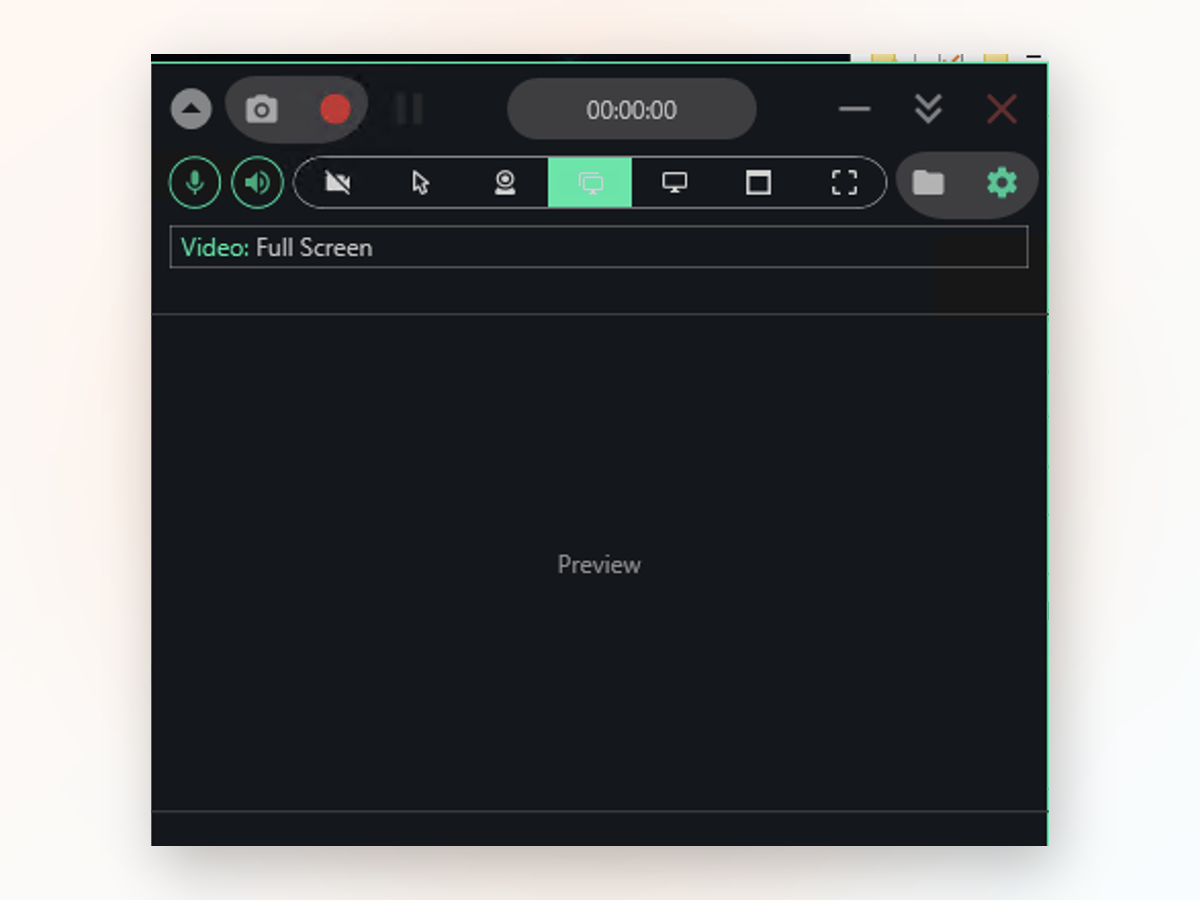
Windows Desktop Recorder app window on Windows
Why choose it

Why reach for a desktop recorder instead of built-in options.

Windows Game Bar covers quick clips, but desktop recording needs more control.

Getting started

Start recording in four steps.

The app launches straight from the folder with no installation needed.

1
Extract and open the appUnzip the downloaded file and run Windows Desktop Recorder directly from the folder—no installer, no system clutter.
2
Choose your source and audioPick full screen, window, region, or monitor from the toolbar. Toggle your microphone and speaker icons on or off depending on what audio you need.
3
Press the record button or hotkeyClick the red circle or press your configured global hotkey to start capturing. Hit the square to stop.
4
Find your file in the Videos folderThe finished MP4 or GIF appears in Videos\Windows Desktop Recorder. The app has a shortcut to open that folder instantly.
Your questions answered

Common questions about desktop recording.

What you get
Inside the appWindows Desktop Recorder window

Capture exactly what you need, clean and simple.

The recorder gives you four capture modes—full screen, single window, freeform region, or a specific monitor—so you're never forced to grab more than you want. Both audio tracks go into one file, and optional on-screen indicators show mouse clicks and keystrokes for tutorials or demos.

Full screen or window captureRecord everything on your monitor, just one application window, or a region you draw yourself.
Dual audio in one MP4Microphone and system audio are both recorded and mixed into your output file automatically.
Optional webcam overlayAdd a picture-in-picture bubble of your camera for talking-head clips or reaction videos.
Compare approaches

How it stacks up against other approaches.

Desktop recording has options; here's what sets this tool apart.

 Windows Desktop RecorderOnline recording tools
Account requiredNo sign-inUsually mandatory
Watermark on outputNoneOften present
Works offlineYesNo, needs internet
Dual audio recordingMic + system audioLimited options
Global hotkeysYesRarely available
File ownershipYours locallyCloud-dependent

Record your screen the way you actually want to.

Download Windows Desktop Recorder now and capture your first clip in under a minute—no account, no waiting, just a hotkey and a clean file.

Download for Windows
Latest release · v1.0